
Step 1- Download XAMPP
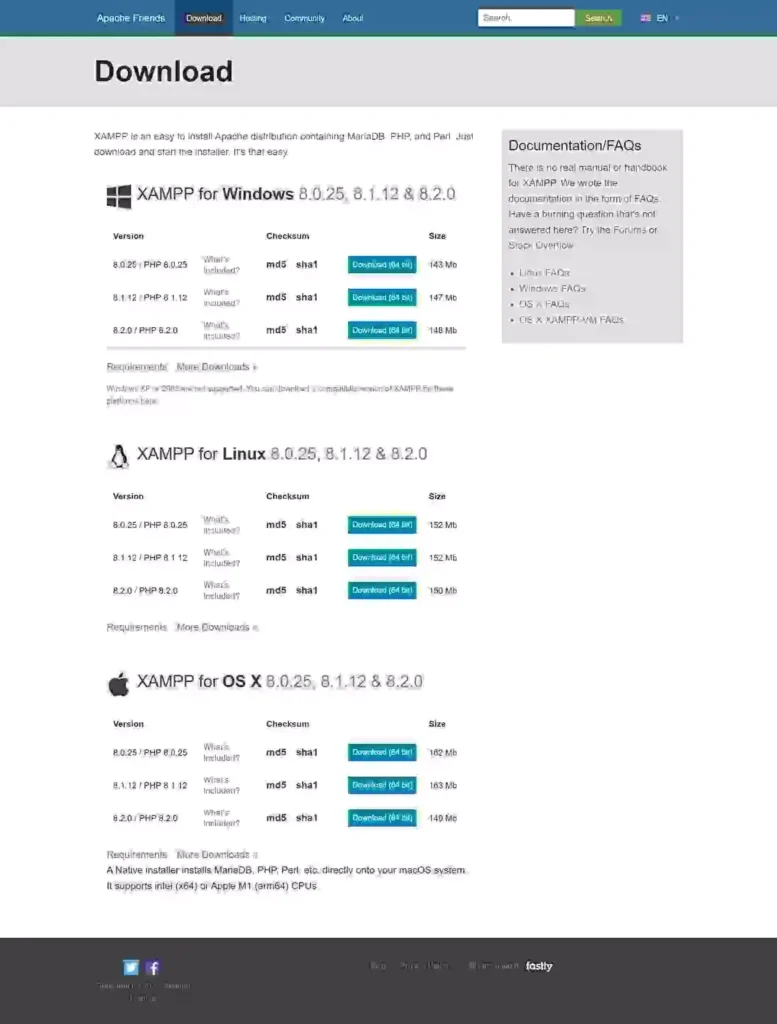
Go to the official XAMPP website. Select your operating system and click on the download button.
There are different versions for different operating systems. Choose which one is best for your device.
Let’s start with How to Install XAMPP?
Step 2- Install & Run the XAMPP on Your PC
After downloading the software, you need to unzip it.
just click on the Install button.
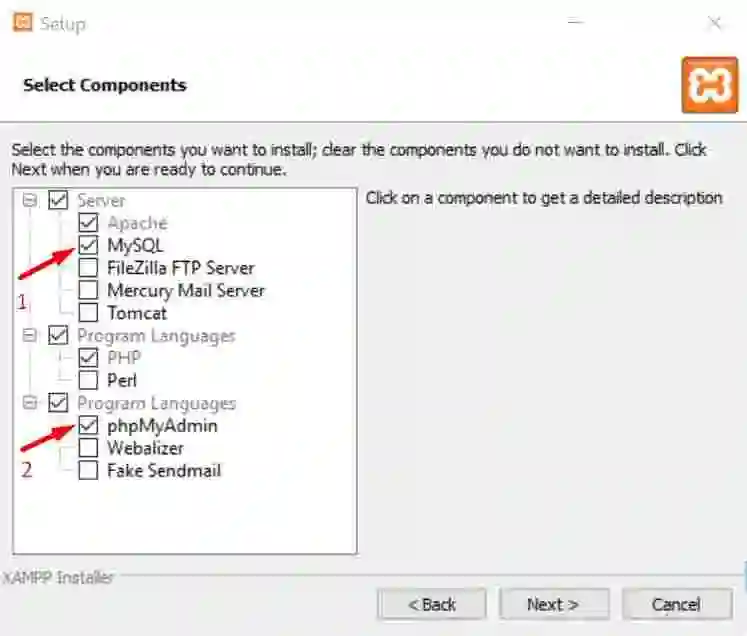
In the next step, you will see some checkboxes that are already marked. You only need MySQL and phpMyAdmin, so unmark all the other checkboxes.
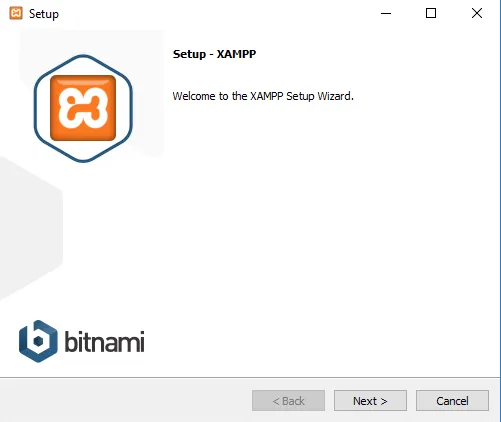
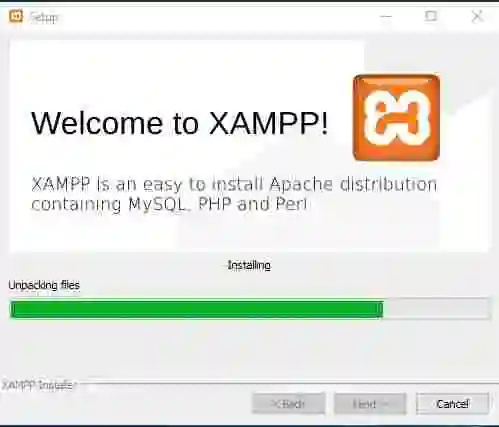
After a few moments, you will see a welcome notice. That means your installation process is working perfectly.
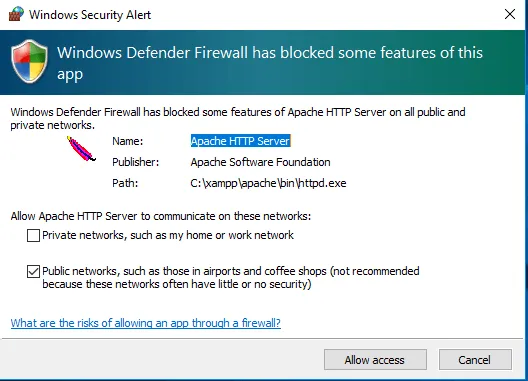
If you have any antivirus software installed on your PC, you may see a security alert like this. Don’t worry,go ahead by clicking on the Allow access button.
You will see a language selection option, check the one you want and click on the Save button.
You are almost at the end of the installation process. Just mark this question box and click on the Finish button. The XAMPP control panel will automatically run on your device.
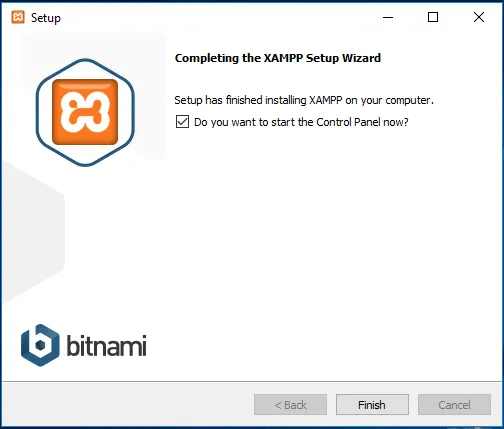
Congratulations! You have completed the XAMPP installation process.
Read this also post, What is the XAMPP vs WAMP vs MAMP vs LAMP?
Frequently Asked Questions
What is XAMPP used for?
XAMPP is used to create a local development server for PHP, MySQL, Apache, and web application testing.
Why is Apache not starting in XAMPP?
Apache may fail to start when ports 80 or 443 are already used by another application such as Skype, IIS, or another web server.
Where should I put PHP files in XAMPP?
Place PHP project files inside the htdocs folder, then open them through localhost in the browser.